Tuesday, September 27

PRIVATE BROWSING MODE EXPOSED


  • PRIVATE BROWSING AIMS TO HELP YOU MAKE SURE THAT YOUR WEB BROWSING ACTIVITIES DON'T LEAVE ANY TRACE ON YOUR OWN COMPUTER.  IT IS VERY IMPORTANT TO NOTE THAT PRIVATE BROWSING IS NOT A TOOL TO KEEP YOU ANONYMOUS FROM WEBSITES OR YOUR ISP, OR FOR EXAMPLE PROTECT YOU FROM ALL KINDS OF SPYWARE APPLICATIONS WHICH USE SOPHISTICATED TECHNIQUES TO INTERCEPT YOUR ONLINE TRAFFIC.  PRIVATE BROWSING IS ONLY ABOUT MAKING SURE THAT FIREFOX DOESN'T STORE ANY DATA WHICH CAN BE USED TO TRACE YOUR ONLINE ACTIVITIES, NO MORE, NO LESS.
  • HERE BELOW YOU WILL SEE, HOW YOUR DATA WAS STILL SAVED IN YOUR COMPUTER & ANY ONE CAN STILL TRACE YOU. PRIVATE BROWSING STILL NOT SAFE 100%.
**************************************************************************


USING THE COMMAND LINE


  • When you enter on a website, you first tell the browser the name of the site you want to visit. To contact that website, the computer needs to find the IP associated with the website name; to do this, it uses a DNS server.
  • As you can read the process is very straightforward. As it’s not necessary to get this IP address every time, Windows uses a program (a DNS client) to store this information.
  • To test everything first we are going to clear entries in the DNS client.
  • Press WinKey + R, type cmd and press Enter to open a command line.

  • In the command line type "ipconfig /flushdns" and press Enter.

  • You can see the DNS resolver cache using "ipconfig /displaydns".

  • Now we are going to open a Chrome window and go to any website using Incognito mode. This is the private mode of Google Chrome. To open a window in this mode press "Ctrl + Shift + N".

  • Can you imagine what happens if we close this window and check the DNS cache using "ipconfig /displaydns".
  • As we can see Chrome doesn’t remove this information from the DNS cache.
--------------------------------------------------------------------------------------------------------------------------------------------------------------------------------------------------------------------------------------------------------------------------

USING SCRIPT


  • You have to copy this to a notepad file :

@echo off

Powershell -noexit "ipconfig /displaydns | select-string 'Record Name' | foreach-object { $_.ToString().Split(' ')[-1]   } | Sort | Out-Gridview"


  • As always go to File menu, click Save As…, and give the file a name i.e. “ShowDNSCache.bat”. (Include the quotes to save the file as a BAT file and not a TXT file.)

  • We can now easily find that someone has browsed Windows Guides (or any site.)
----------------------------------------------------------------------------------------------------------------------------------------


BIT LOCKER ENCRYPTION PORTABLE MEDIA IN WINDOWS 7


  • THIS DRIVE ENCRYPTION TECHNIQUE IS ONLY FOR ULTIMATE & ENTERPRISE EDITION FOR WINDOWS 7. BUT STILL YOUR SYSTEM REQUIRES TRUSTED PLATFORM MODULE (TPM) FOR ENCRYPTION.
  • IN THIS ENCRYPTION TECHNIQUE, YOU WILL LEARN HOW TO ENCRYPT YOUR PORTABLE MEDIA LIKE PEN DRIVE USING BIT LOCKER.
*****************************************************************************************************************

    • Plug your thumb drive into a USB port.
    • Click the Start button, type BitLocker, and click on BitLocker Drive Encryption.

    • Next to your thumb drive, click Turn on BitLocker.

    • If your thumb drive is compatible, BitLocker will prepare it.

    • Choose a password and click continue.

    • Either save your recovery key (used if you forget your password) or print a copy of it out.

    • If you save the file, ensure it’s stored somewhere safe.

    • Confirm your chosen settings and password and click Start Encrypting.

    • Your drive will now be encrypted, If you have a large thumb drive, this may take a long time.
    ------------------------------------------------------------------------------------------------------------------

    Verifying Your Thumb Drive is Encrypted Properly


    • When protecting your data or anything you own, it is important to ensure the protection actually works. I took my thumb drive out of the Windows Seven machine and put it in a Vista machine. You should do the following too, to ensure your data is protected.
    To verify your data is protected, do the following:
    Put your thumb drive in another PC and try to open the files. You should see a BitLocker setup file, which shows BitLocker is not installed on the computer you’re testing on. If you have BitLocker installed on the machine, you will be prompted for a password (see the next step).

    • If you have BitLocker installed on the PC you are testing on, you will be prompted for your password.
    • Enter your password to get to your data.
    --------------------------------------------------------------------------------------------------------------------

    Removing Bit Locker Encryption

    • Plug your thumb drive into a USB port

    • Click the Start button, type BitLocker, and click on BitLocker Drive Encryption.
    • Next to your thumb drive, click Turn Off BitLocker, and click Decrypt.
    • Your drive is no longer encrypted.


    BIT LOCKER DRIVE ENCRYPTION IN WINDOWS 7 - TPM BYPASSING


    • THIS DRIVE ENCRYPTION TECHNIQUE IS ONLY FOR ULTIMATE & ENTERPRISE EDITION FOR WINDOWS 7. BUT STILL YOUR SYSTEM REQUIRES TRUSTED PLATFORM MODULE (TPM) FOR ENCRYPTION.
    • A TPM IS A MICROCHIP DESIGNED TO PROVIDE BASIC SECURITY-RELATED FUNCTIONS, PRIMARILY INVOLVING ENCRYPTION KEYS. THE TPM IS USUALLY INSTALLED ON THE MOTHERBOARD OF A COMPUTER OR LAPTOP, AND COMMUNICATES WITH THE REST OF THE SYSTEM USING A HARDWARE BUS.
    *************************************************************************************************************************************
    • To encrypt an entire drive, simply right-click on the drive and select Turn on BitLocker from the context menu.
    • A TPM ERROR, if you have a drive that doesn’t have a compatible TMP then you’ll need to use the following steps and have a flash drive.
    • Enter in gpedit.msc in the search box of the Start menu and hit Enter.
    • Under Local Computer Policy navigate to -->


      Computer Configuration \ Administrative Templates \ Windows Components \ Bit Locker Drive Encryption \ Operating System Drives

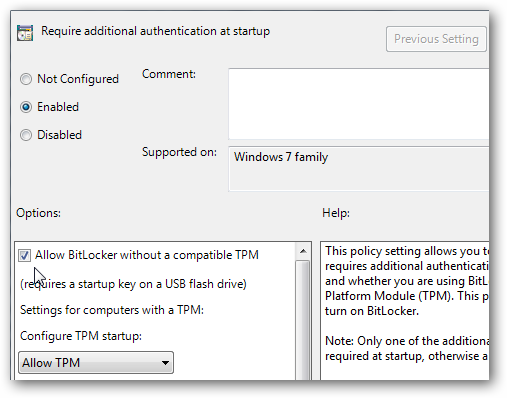
      and double click on Require additional authentication at startup.
    • Enable the feature and check the box next to Allow BitLocker without a compatible TPM, click Apply and Ok, and close out of Local Group Policy Editor.
    • Go back to the hard drive you want to encrypt and turn on BitLocker. A restart will be required to prepare the disk, and at this point make sure the flash drive is plugged in.
    • After the restart you’re prompted to use the startup key on the flash drive every time you start the computer.
    • Select the drive you want to use to store the key.
    • Again, simply right-click on the drive and select Turn on BitLocker from the context menu.
    • Next you’ll need to choose a secure password that will be used to access the drive.
    • You’re prompted to store the recovery key which is used in the event you lose your password or smartcard. If you store it as a file make sure that it’s not on the same drive that you’re encrypting.
    • Confirm you want the drive to be encrypted then wait until the process is complete. The amount of time it takes will vary based on the size and amount of data on the drive.
    • To access the encrypted drive you’ll need to enter in the password to unlock it.
    • The drive icon will change to show it’s encrypted with BitLocker, where the gold lock indicates it’s locked up and the gray lock is displayed after you have unlocked it.


    Sunday, September 25

    CREATE YOUR OWN WINDOWS SHORTCUT - SHUTDOWN, RESTART, HIBERNATE, LOCK, SLEEP.


    • SIMPLY CREATE YOUR OWN SHORTCUTS, WHILE IN CASE OF EMERGENCY, YOU DON'T HAVE TO GO FOR START MENU. JUST CLICK ON YOUR SHORTCUT & YOU ARE DONE.
    ****************************************************************************************************************************************

    SHORTCUT FOR WINDOWS SHUTDOWN

    • On Desktop, Right Click, NEW --> SHORTCUT.
    • Next, In the Location Item Type --> "shutdown -s -t 00". Click Next.
    • Write Your Name for shortcut. Click Finish & You are Done.
    TO MAKE OTHER SHORTCUT's JUST TYPE IN LOCATION TYPE -->
    • FOR RESTART --> "shutdown -r -t 00"
    • FOR HIBERNATE MODE

    "rundll32.exe PowrProf.dll,SetSuspendState"

    • LOCK WORKSTATION 

    "rundll32.exe User32.dll,LockWorkStation"

    • SLEEP COMPUTER 

    "rundll32.exe powrprof.dll,SetSuspendState 0,1,0"


    ---------------------------------------------------------------------------------------------------------------------------------------------------------------------------------------------------------------------------------------


    YOU CAN ALSO CHANGE THE ICON OF YOUR SHORTCUT. JUST RIGHT CLICK ON SHORTCUT, GOTO PROPERTIES --> SHORTCUT --> CHANGE ICON. CLICK APPLY & OK.


    • AFTER CHANGING ICON, YOUR SHORTCUT WILL SOME WHAT LOOK LIKE THIS. 
    --------------------------------------------------------------------------------------------------------------------------------------------------------------------------------------------------------------------------------------------------------------------------------


    CHANGE YOUR MONITOR TIMEOUT TIME


    • IT HAPPENS SOME TIMES THAT, AFTER A WHILE YOUR MONITOR GOES TO SLEEP OR  IT TURNS OFF. IT'S A BIT FRUSTATING WHILE YOU ARE STILL ON WORK OR READING OR WATCHING SOMETHING.
    • POWERCFG COMMAND LINE UTILITY IS USED TO TOGGLE POWER SETTINGS.
    **************************************************************************
    • Open COMMAND PROMPT & Type -->
    powercfg -change -monitor-timeout-ac 30
    • This Command will change your monitor power setting to turn-off after 30 minutes. You can change according to your needs. REMEMBER "AC" USED IN THIS COMMAND IS WHEN YOUR LAPTOP IS ON POWER-ON i.e. CHARGING.
    • You can also change this Monitor power setting when ON BATTERY, by executing this command --> 
    powercfg -change -monitor-timeout-dc 30

    **************************************************************************


    Saturday, September 24

    DISABLE AERO SHAKE IN WINDOWS 7


    ONE OF THE INTERESTING NEW FEATURES IN WINDOWS 7 IS THE WAY YOU CAN GRAB A WINDOW BY THE TITLE BAR AND “SHAKE” IT BACK AND FORTH TO MINIMIZE EVERYTHING ELSE.
    **************************************************************************
    • Goto "RUN" & Type "regedit.exe".
    • Navigate to -->
    HKEY_CURRENT_USER\Software\Policies\Microsoft\Windows
    • Once you are there, right-click on the Windows key and create a new key called "Explorer".
    • Now right-click on the right-hand side, create a new 32-bit DWORD with the following settings -->


    • Name: NoWindowMinimizingShortcuts

    • Value: 1

    • Once you’ve created this, you should log off and back on for the change to take effect.
    -----------------------------------------------------------------------------------------------------


    TEST DRIVE WINDOWS 7 ONLINE WITH VIRTUAL LABS


    • Microsoft has setup a special Windows 7 Test Drive website with resources to help IT professionals test and deploy Windows 7 in their workplaces.  This is a great resource to try out Windows 7 from the comfort of your browser, and look at some of the new features without even installing it.
    • Please note that the online version is not nearly as responsive as a full standard install of Windows 7.  It also does not run the full Aero interface or desktop effects, and may refresh slowly depending on your Internet connection.  So don’t judge Windows 7’s performance based on this virtual lab, but use it as a way to learn more about Windows 7 without installing it.
    **************************************************************************

    • On Visiting Microsoft's Website, Look At Bottom Of Page. You can Take Test Drive's According to your requirements. Any Security Feature you want to test or simple PC management. I choosed Security control test drive [middle one].
    • Next Window you can see several Security Features they give you for trial, like BITLOCKER, IE8, UAC etc. I choosed to take a trial of BITLOCKER. Click on Test Drive.
    • Next Window You will see that particular "Launch Virtual Lab" as above. Click on it and move forward.
    • Next screen it will check for requirements. Anything missing is indicated in Red Text. Since, you can see above i was running this in google chrome. I need to use IE updated version to get things started.
    • Next Screen you can, it will ask for Allowing the "Remote Desktop Services ActiveX Client". Click on Allow & move forward.
    • Next Screen will be a Processing Virtual Lab screen. It make Take time according to your Internet Connection Speed.
    • Next Screen, you can see on Right, You can navigate according to what you like. Whether you want to see Video Demo on Virtual Machine or you can download PDF version also.
     SOME MORE SCREEN-SHOTS


    THESE VIRTUAL LABS ARE GREAT FOR TECH STUDENTS, OR THOSE OF YOU WHO WANT TO GET A FIRST-HAND TRIAL OF THE NEW FEATURES.

    ----------------------------------------------------------------------------------------------------------------------------------------------------