Tuesday, August 2

CRACKING BIOS PASSWORD


  • BIOS stands for "basic input/output system" and is the program on your computer that makes sure all the components from your operating system to your central processing unit (CPU) to your RAM and everything in between all functions together as one unit.
  • The main thing your BIOS does when you turn on your computer is load your operating system. Your operating system is what controls the majority of the processes your computer runs, but it could not do that without the BIOS loading it first.
  • When you start your computer, the Central Processing Unit (CPU) tries to execute its first instruction; it has to get the instruction from somewhere. It can't get it from the operating system because the operating system is located on a hard drive, the CPU can't get to it without some instructions that will tell it how. The CPU sends control of the PC to the BIOS routine.


FOLLOW THE LINK TO UNDERSTAND THE WORKING OF BIOS


HERE ARE FEW METHODS TO BYPASS BIOS PASSWORD

NOTE : IT IS NOT NECESSARY THAT THESE METHODS WILL WORK ON ALL BIOS. YOU HAVE TO KNOW THE NAME OF YOUR BIOS MANUFACTURER FOR BETTER CRACK.


METHOD 1
  • Open command prompt & type - "DEBUG". 
    You will get a - prompt where you can type the fOllowing (<enter> means hit enter, not type enter*)


A <ENTER>
MOV AX,0 <ENTER>
MOV AX,CX <ENTER>
OUT 70,AL <ENTER>
MOV AX,0 <ENTER>
OUT 71,AL <ENTER>
INC CX <ENTER>
CMP CX,100 <ENTER>
JB 103 <ENTER>
INT 20 <ENTER>
<ENTER> just hit enter on this line
G <ENTER>
Q <ENTER> 


METHOD 2
  • This password hack clears the BIOS such that the next time you start the PC, the CMOS does not ask for any password. Now if you are able to bring the DOS prompt up, then you will be able to change the BIOS setting to the default.
  • To clear CMOS, Open CMD & Type --> "DEBUG". Type Next... 

-o 70 2e <enter>
-o 71 ff <enter>
-q <enter>
exit <enter>

Restart the computer. It works on most versions of the AWARD BIOS.

METHOD 3

  • When you turn on the host machine, enter the CMOS setup menu (usually you have to press F2, or DEL, or CTRL+ALT+S during the boot sequence).


  • Now go to STANDARD CMOS SETUP, and set the channel to which you have put the hard disk as TYPE=Auto, MODE=AUTO, then SAVE & EXIT SETUP. Now you have access to the hard disk.
This information is intended for experienced users. It is not intended for basic users, hackers, or computer thieves. Please do not try any of following procedures if you are not familiar with computer hardware.


METHOD 4 


By Using the Motherboard Jumper. 

  • In most motherboards CMOS battery is soldered, which makes it difficult to remove the battery. In this case we use another method.
  • Almost all motherboards contain a jumper that can clear all CMOS settings along with the BIOS password. The location of this jumper varies depending upon the motherboard brand. You should read your motherboard manual to check its location. 
  • If you don't have the manual then look for the jumpers near the CMOS battery. Most of the manufacturer label the jumper as CLR, CLEAR, CLEAR CMOS, etc.
  • When you find the jumper, look carefully. There will be 3 pins and the jumper will be joining the center pin to either left or right pin. 
  • What you need to do, is remove the jumper and join the center pin to the opposite pin. e.g. if the jumper joins center pin to left pin, then remove it and join center pin to right pin. Now wait for a few seconds (30 secs) and then again remove the jumper and join the center pin to left pin.


METHOD 5

Cracking By Means of Software.
  • BIOS/CMOS Password Recovery Tool is a program that works instantly to remove any lost or forgotten BIOS/CMOS password. Simply boot your PC to DOS and execute the program, and get access to forgotten BIOS/CMOS passwords in just seconds.

  • Other Password Recovery Programs are - REMPASS & KILLCMOS. Keep in mind that if you are unable to boot the PC from a floppy disk, you will be unable to use these programs. Additionally, since the software does not come from the BIOS manufacturer, you will be using it at your own risk.

By Setting up Backdoor BIOS Password

Each motherboard manufacturer has set a backdoor password in order to facilitate the provision of technical support. The backdoor password is a BIOS password that works, no matter what the user sets the BIOS password to.


  • AMI Backdoor BIOS Passwords
Reported AMI backdoor BIOS passwords include --> 

A.M.I., AAAMMMIII, AMI?SW , AMI_SW, BIOS, CONDO, HEWITT RAND, LKWPETER, MI, and PASSWORD.
  • Award Backdoor BIOS Passwords

One reported Award backdoor BIOS password is "eight spaces". 
Other reported Award backdoor BIOS passwords include --> 
01322222, 589589, 589721, 595595, 598598 , ALFAROME, ALLY, ALLy, aLLY, aLLy, aPAf, award, AWARD PW, AWARD SW, AWARD?SW, AWARD_PW, AWARD_SW, AWKWARD, awkward, BIOSTAR, CONCAT, CONDO, Condo, condo, d8on, djonet, HLT, J256, J262, j262, j322, j332, J64, KDD, LKWPETER, Lkwpeter, PINT, pint, SER, SKY_FOX, SYXZ, syxz, TTPTHA, ZAAAADA, ZAAADA, ZBAAACA, and ZJAAADC.
  • Phoenix Backdoor BIOS Passwords
Reported Phoenix BIOS backdoor passwords include -->

BIOS, CMOS, phoenix, and PHOENIX.

  • Backdoor BIOS Passwords from Other Manufacturers

Manufacturer
BIOS Password
VOBIS & IBM
merlin
Dell
Dell
Biostar
Biostar
Compaq
Compaq
Enox
xo11nE
Epox
central
Freetech
Posterie
IWill
iwill
Jetway
spooml
Packard Bell
bell9
QDI
QDI
Siemens
SKY_FOX
SOYO
SY_MB
TMC
BIGO
Toshiba
Toshiba


RSS EXPOSED


RSS HISTORY
  • RSS was first invented by Netscape, when they were trying to get into the portal business. They wanted an XML format (RSS .90) that would be easy for them to get news stories and information from other sites and have them automatically added to their site. 
  • They then came out with RSS .91 and dropped it when they decided to get out of the portal business.
  • UserLand Software picked up RSS .91 and continued to develop it, coming out with .92, .93, and .94. At the same time as UserLand, a non-commercial group picked up RSS and developed RSS 1.0 based on their interpretation of the original principles of RSS. 
  • They based RSS 1.0 on RDF and re-named it RDF Site Summary. UserLand was not happy with RSS 1.0, and continued development of their version of RSS (Really Simple Syndication), eventually releasing RSS 2.0.

RICH SITE SUMMARY / REALLY SIMPLE SYNDICATION

  • RSS is a technology that is being used by millions of web users around the world to keep track of their favorite websites.


  • In the ‘old days’ of the web to keep track of updates on a website you had to ‘bookmark’ websites in your browser and manually return to them on a regular basis to see what had been added.
  • RSS is a better way to be notified of new and changed content. Notifications of changes to multiple websites are handled easily, and the results are presented to you well organized and distinct from email.
  • It consists of simple text files with additional XML tags to create RSS feeds that are easily read and formated by RSS readers, browsers and websites.
  • It allows you to easily stay informed by retrieving the latest content from the sites you are interested in. You save time by not needing to visit each site individually. You ensure your privacy, by not needing to join each site's email newsletter.

WORKING OF RSS
  • RSS works by having the website author maintain a list of notifications on their website in a standard way. This list of notifications is called an "RSS Feed".
  • For Websites, RSS Feeds can be created manually or with software.
  • RSS FEEDS are basically simple text files that, once submitted to feed directories, will allow subscribers to see content within a very short time after it's updated (sometimes as short as 30 minutes or less; it's getting faster all the time).
  • Special computer programs called "RSS aggregators" have been developed that automatically access the RSS feeds of websites you care about on your behalf and organize the results for you. (RSS feeds and aggregators are also sometimes called "RSS Channels" and "RSS Readers".)


Item 1:
  Title:Sidewalk contract awarded
  Description:The city awarded the sidewalk contract to Smith Associates. This hotly contested deal is worth $1.2 million.
  Link:http://www.gardencitynews.com/contractawards/sidewalk.htm

Item 2:
  Title:Governor to visit
  Description:The governor is scheduled to visit the city on July 1st. This is the first visit since the election two years ago. The mayor is planning a big reception.
  Link:http://www.gardencitynews.com/news/2004/06/gov-visit.html

  • RSS aggregators automatically check a series of RSS feeds for new items on an ongoing basis, making it is possible to keep track of changes to multiple websites without needing to tediously read and re-read each of the websites yourself. 
  • They detect the additions and present them all together to you in a compact and useful manner. If the title and description of an item are of interest, the link can be used to quickly bring the related web page up for reading.


HOW RSS FEED FILE PRODUCED
  • Most large news websites and most weblogs are maintained using special "content management" programs. Authors add their stories and postings to the website by interacting with those programs and then use the program's "publish" facility to create the HTML files that make up the website.
  • The special XML-format file that makes up an RSS feed is usually created in one of a variety of ways.
  • Those programs often also can update the RSS feed XML file at the same time, adding an item referring to the new story or post, and removing less recent items. Blog creation tools like Blogger, LiveJournal, Movable Type, and Radio automatically create feeds.
  • Websites that are produced in a more custom manner, such as with Macromedia Dreamweaver or a simple text editor, usually do not automatically create RSS feeds. Authors of such websites either maintain the XML files by hand, just as they do the website itself, or use a tool such as Software Garden, Inc.'s ListGarden program to maintain it.


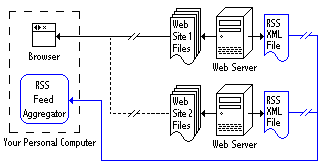
RSS DIAGRAM

Two web servers each with an RSS file being checked by an aggregator


The diagram shows a web browser being used to read.


First Web Site 1 over the Internet and then Web Site 2. 


It also shows the RSS feed XML files for both websites being monitored simultaneously by an RSS Feed Aggregator.


Firefox Secure Browsing - Top Plugins for Mozilla


Firefox is a very powerful browser, it can secure your Pc against any hacker ,it can maintain your privacy using Add-ons. The great thing about the Firefox is that there are tons of extensions that enhance the functionality of the browser.

Add-ons are tiny software or application coded to provide additional functionality and features to your existing web browser.

3 TIPS FOR SAFE & SECURE BROWSING IN MOZILLA 
  • USE SSL
SSL is (Secure Socket Layer),it is an protocol which is used for secured internet communication like web browsing, email ,instant messaging, using SSL protocol gives you better security. So for better Security & safe browsing use -->
When you search over ssl Protocol, they are encrypted. So that no intermediate party can read what you are doing, except your service provider.

  • USE PRIVATE BROWSING
A new browser session is created that operates separately from your existing one, with its own history and cookies that are erased when the window is closed. And though it can keep a snoop from seeing what sites you've visited by going through your history, it doesn't make you anonymous on the Web.


But while Browsing it is better to Browse Safe in Private Mode. Goto --> Tools --> "Start Safe Browsing" or "Ctrl+Shift+P". 
In Other Firefox Versions, Goto --> Firefox --> "Start Private Browsing".

NOTE : AFTER BROWSING SAFELY YOU HAVE TO CLOSE PRIVATE BROWSING. TO CLOSE PRIVATE BROWSING "Ctrl+Shift+P".


  • USE ADD-ON FOR MORE SECURE FIREFOX
Here are Few of the Mozilla Plugins to Secure Mozilla Browsing.


1. Better Privacy


Better Privacy serves to protect against special long term cookies, a new generation of 'Super-Cookie', which silently conquered the Internet. Better Privacy allows to list and manage Flash-cookies.


2. No Script

It allows JavaScript, Java and other executable content to run only from trusted domains of your choice, e.g. your home-banking web site, guarding your "trust boundaries" against cross-site scripting attacks (XSS), cross-zone DNS rebinding / CSRF attacks (router hacking), and Clickjacking attempts, thanks to its unique ClearClick technology.

3. ADBlock Plus

Adblock Plus also allows you to customize your filters with the assistance of a variety of useful features, including a context option for images, a block tab for Flash and Java objects, and a list of blockable items to remove scripts and stylesheets.


4. GreaseMonkey

Allows you to customize the way a web page displays or behaves, by using small bits of JavaScript.


5. FireBug

Firebug integrates with Firefox to put a wealth of development tools at your fingertips while you browse. You can edit, debug, and monitor CSS, HTML, and JavaScript live in any web page.


6. Screengrab

Screengrab! saves entire webpages as images. Just right-click on the page you want to grab and look in the "Screengrab" menu.

It will capture what you can see in the window, the entire page, just a selection, a particular frame... basically it saves webpages as images - either to a file, or to the clipboard.


7. Personas Plus

Personas are free, easy-to-install "skins" for Firefox. Personas Plus extends that built-in functionality to give you even greater control and easier access to new, popular, and even your own favorite Personas.


8. InFormEnter

InFormEnter adds a small, clickable icon next to every input field in a web form, from where you can select the item to be inserted - no typing required.


9. Web Of Trust

Web of Trust is the leading website reputation rating tool and one of Mozilla’s most popular add-ons. Our safe surfing tool uses an intuitive traffic-light style rating system to help you see which websites are trusted when you search, surf and shop online.


10. PhishTank SiteChecker

This add-on secure your pc against phishing, what is phishing? phishing is an act of collecting useful information about username, password , credit card information its an illegal activity ,so this add-on provides you security against phishing.


11. Keylogger Beater

If you are worried about keylogging programs in your system, you can try this extension. There are two different ways to input with this extension. With the help of Keylogger Beater, a keylogger running in the background can never capture what you have really input, and you will be more confident to do online shopping or online banking.


12. Ghostery

It is one of the powerful functionality to protect your privacy from trackers and give You a detailed info about trackers and blocks them from tracking you.


13. BugMeNot

Activate the extension by right-clicking on a user name and/or password field of a site that asks for registration. BugMeNot will log in for you automatically using user-submitted passwords. Features: multiple login attempts, failure reporting, and auto-submittal.


14. LastPass Password Manager

LastPass is a free online password manager and Form Filler that makes your web browsing easier and more secure. Also for IE, Safari and Chrome. Your sensitive data is encrypted _locally_ before upload so even LastPass cannot get access to it.


15. Mitto Password Manager

Mitto is a free, safe & secure online password manager that works in any browser & makes using the Internet easier & more secure. Mitto has extensions for Firefox and Chrome & also supports other browsers via the Mitto Bookmarklet.